Photo to PDF Converter Online Free
Even if you are not sure which tool to use — start with Photo to PDF, JPG to PDF, or choose your scenario below.
Turn your photos, screenshots, receipts, and document images into upload-ready PDFs — no sign-up, no email required. Choose the tool that matches your file: Photo to PDF for mixed images, JPG to PDF for camera photos, or PNG to PDF for screenshots. If your file is too large, use Image Compressor first.
Turn mixed phone photos, screenshots, receipts, and scanned-looking pages into one PDF.
Photo to PDF converter
Drop your photos, arrange them in order, rotate any that are sideways, choose compression and layout, then download one PDF. Your images never leave your device — no uploads, no copies on a server.
Drop photos here
or tap to choose JPG, PNG, WebP, GIF, BMP images
+ Add photosTurn your images into PDF
Upload photos, JPG, PNG, or mixed image files and get a single PDF back. Pick the converter that fits your file type and you are done.
Photo to PDF
PopularUpload mixed phone photos, receipts, forms, and homework pages, then download one clean PDF ready to send.
Open tool →JPG to PDF
Your JPG images become a single PDF for email, upload, or printing — no quality loss, no hassle.
Open tool →PNG to PDF
Screenshots, diagrams, and scanned PNGs become sharp, printable PDF pages without changing the original files.
Open tool →Compress Photo to PDF
Make your photo-PDF small enough for strict upload limits — school portals, government forms, and work systems.
Open tool →Need to do more with your PDF?
Turn PDF pages back into images, split or combine files, or make the file smaller — all the tools you need after your PDF is ready.
PDF to Images
Extract every page as a separate image when a website, form, or editor needs JPG or PNG instead of PDF.
Open tool →PDF to JPG
PDF not accepted? Turn each page into JPG and upload to any system that only takes images.
Open tool →PDF to PNG
Get sharper page images from PDFs when you need clean screenshots, diagrams, or text-heavy pages.
Open tool →Fix your images before turning them into PDF
Oversized photo? Wrong format? Compress, resize, or convert your images first so your PDF comes out clean and small enough to upload.
Image Compressor
AvailableMake your images smaller without losing visible quality — everything stays in your browser, nothing is uploaded to a server.
Open tool →Image Resizer
AvailableShrink oversized images to fit upload size limits — perfect for forms, websites, and PDF prep.
Open tool →HEIC to JPG
Got HEIC photos from your iPhone that won’t open? Convert them to JPG so every website and PDF tool works with your files.
Open tool →Not sure what to click?
If your file is too large, the wrong format, rotated the wrong way, or part of a batch of images, these pages will show you exactly what to do next.
Picture to PDF
HelpfulSearched for picture to PDF? Same tool, same result — upload pictures, get a PDF back.
Open tool →Multiple Images to PDF
HelpfulNeed one file instead of ten images? Combine multiple pictures into a single PDF for a cleaner upload.
Open tool →Rotate Image Before PDF
HelpfulPhoto showing sideways? Rotate it in the tool first, then create your PDF the right way up.
Open tool →Document Photo to PDF Help
GuideDocument photo too large, wrong format, or hard to upload? This guide walks you through fixing each problem before converting to PDF.
Open tool →Real situations where this helps
Whether you are submitting homework, filing receipts, applying for a form, or organizing office documents — your photos become a clean PDF in seconds.
Homework and school submission
Tired of sending one photo per page? Combine assignment photos, notebook pages, screenshots, and IDs into a single PDF that uploads in one go.
Receipt photo to PDF
Store your receipts as clean PDF files — no more hunting through a camera roll when you need to find one.
Forms and application portals
Most websites only accept PDF. Turn your scanned forms, signed documents, and ID photos into the right format in seconds.
Phone photo workflows
Use iPhone or Android photos directly to create a PDF, then compress, resize, or clean them up — all before you hit upload.
Office and HR documents
Turn document photos, supporting images, and signed pages into neat PDFs for internal systems, HR portals, or email.
PDF back to images
Need to upload images but only have a PDF? Export each page as JPG or PNG and submit without starting over.
Searching for the right tool? Try these
Picture to PDF, screenshot to PDF, or make image smaller for upload — pick the one that matches what you are looking for, and we will guide you to the right tool.
Picture to PDF
SearchIf you searched for picture to PDF, you are in the right place — pick this and get your PDF.
Open tool →Screenshot to PDF
SearchTurn multiple screenshots, app captures, or chat images into one PDF so you can share or store them as a single file.
Open tool →Multiple Images to PDF
SearchSeveral images to turn in? Combine them into one PDF for upload, school, or office tasks.
Open tool →Make Image Smaller for Upload
SearchImage too big to upload? Compress or resize it first and your file will go through without errors.
Open tool →Which tool matches your image files?
The answer depends on the type of images you have. Choose the format below and get your PDF in one step.
Photo to PDF
Best for mixed phone photos, document pictures, receipts, and multiple images to PDF workflows.
Image to PDF
Best when you simply know you have image files and want one straightforward image to PDF tool.
JPG to PDF
Best for JPG or JPEG camera photos that should become a single PDF for upload or email.
PNG to PDF
Best for screenshot to PDF, scans, diagrams, and text-heavy PNG images.
Works on any device you own
iPhone, Android, Windows, or Mac — your files become a clean PDF the same way, no extra setup needed.
iPhone photos
Convert iPhone pictures into PDF, compress images, or change HEIC into JPG when a form needs a more compatible format.
Android photos
Clean phone photos, resize oversized images, and create PDFs for homework, forms, work uploads, or personal records.
Windows and Mac
Turn screenshots, scanned-looking images, and exported photos into PDFs without needing another desktop app.
Upload portals
Fix file size, page format, and readability problems before sending files to schools, offices, reimbursement systems, or government sites.
How to get from starting file to upload-ready PDF
- 1. Pick the tool that matches your file. Upload photos for Photo to PDF, camera shots for JPG to PDF, screenshots for PNG to PDF, or any image file for Image to PDF. You will get a clean PDF back in seconds.
- 2. Fix the blocker. Resize large images, compress oversized files, or change image format if the website has strict rules.
- 3. Fix the page if needed. If the photo is sideways, too large, or the wrong file type, use the related helper page before creating the PDF.
- 4. Download and continue. Save the PDF or move into another tool if the next website needs a different format.
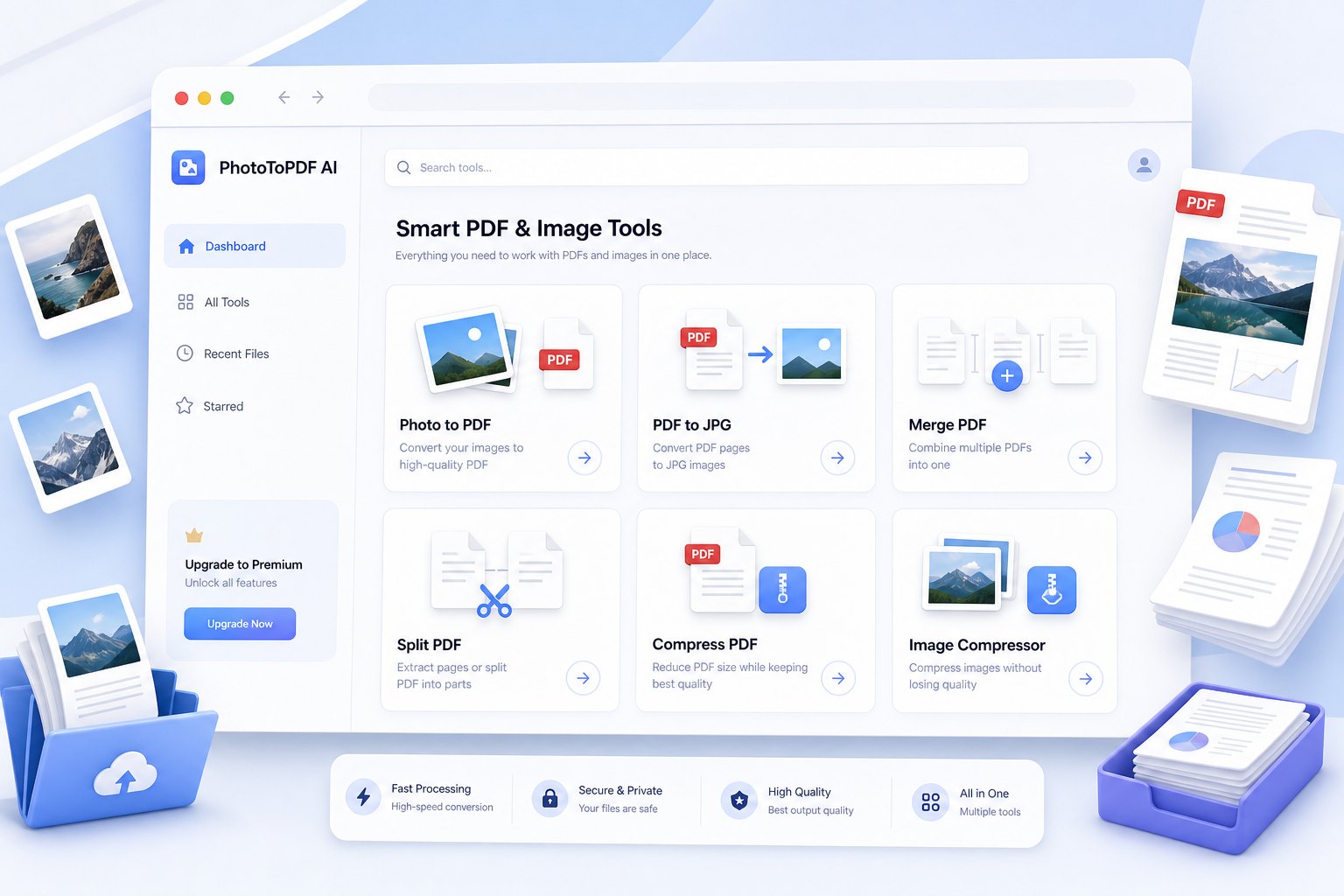
Still not sure?
Just pick Photo to PDF and drop your files in. It works for most image types, and if you hit a size limit, Image Compressor is your next stop.
Not sure which option to pick?
If you want a short walkthrough or a tip for your device, these guides will show you the fastest way to get your PDF ready.
Picture to PDF
GuideIf you search using plain words like picture, this guide connects you to the right converter right away.
Open tool →Multiple Images to PDF
GuideTurn multiple photos or screenshots into one PDF ready for upload — no complicated steps.
Open tool →Photo to PDF on iPhone
MobileUsing an iPhone? This guide handles HEIC photos, mobile uploads, and PDF conversion so your files work everywhere.
Open tool →Make Image Smaller for Upload
PopularNot sure whether to compress or resize? This guide explains the difference and picks the right fix for your file.
Open tool →Receipt Photo to PDF
GuideReceipt photos looking messy? Turn them into clean PDF records for easy filing and sharing.
Open tool →Homework Photos to PDF
GuideStuck with a roll of assignment photos? Combine them into a single PDF for a clean school submission.
Open tool →HEIC Photo to PDF
MobileHEIC photos straight from your iPhone? This guide shows the fastest path from HEIC to a working PDF.
Open tool →PDF Too Large for Upload
PopularPDF rejected for being too large? This guide gives you a way to shrink it without starting over.
Open tool →PhotoToPDF FAQ
Quick answers about privacy, file formats, image-to-PDF conversion, and making uploads smaller.
Is PhotoToPDF free?
Yes, the core tools are free to use every day — Photo to PDF, Image to PDF, JPG to PDF, PNG to PDF, Image Compressor, and Image Resizer. No trial, no credit card.
Can I convert images to PDF on this page?
Yes. Pick the tool that matches your file type, upload your images, adjust settings like quality or page size, and download your PDF. Everything happens on one page.
What is the difference between photo to PDF and image to PDF?
Photo to PDF works best for mixed content like phone photos, receipts, and document pictures. Image to PDF is the right choice if you just have image files and want one straightforward PDF.
Do my files upload to your server?
Your files stay on your device. The basic tools run in your browser — nothing is uploaded to our server unless you choose a tool that requires it.
Should I use JPG to PDF or PNG to PDF?
Use JPG to PDF for camera photos and smaller files. Use PNG to PDF for screenshots, diagrams, and images with text — PNG keeps the edges sharp.
How do I make my PDF smaller?
Start with Compress Photo to PDF and lower the quality setting. If the file is still too big, resize oversized images first or compress the source before converting.
How do I make an image smaller for upload?
Use Image Compressor to shrink the file size. If the website needs smaller dimensions, use Image Resizer instead to adjust width and height.
Can I turn multiple images into one PDF?
Yes. Both Photo to PDF and Image to PDF can combine multiple images, pictures, screenshots, or document photos into a single PDF file.