Document Photo Cleanup Guide
Fix document photos that are too dark, shadowy, or messy so they look clean before converting to PDF.
Not sure whether to compress, resize, rotate, or convert your document photo first? This guide walks you through the right order.
document photo to pdf — ready in seconds, no sign-up needed.
What problem this solves
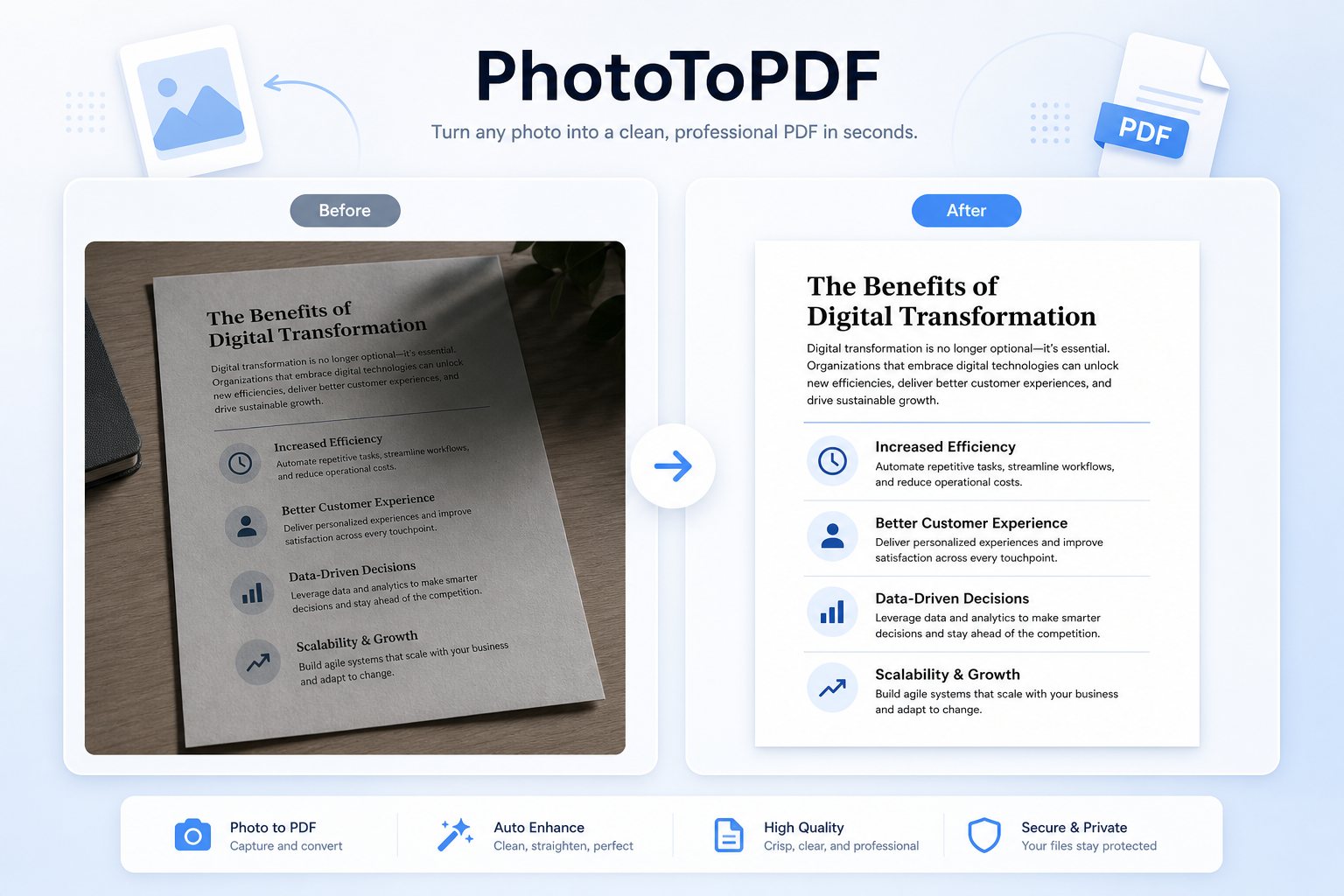
Your document photos have shadows, gray backgrounds, or tilt — and they look messy when you try to upload them.
What result you should get
Fix shadows, straighten tilted pages, and clean up the background so your document photo is ready for PDF conversion.
Who this is for
For anyone with phone-captured forms, certificates, printed pages, or documents that need a clean-up before PDF.
What this tool helps you do
- • Know exactly which basic tool matches your document photo problem
- • Fix dark, shadowy, or tilted document photos before converting to PDF
- • Works with forms, certificates, receipts, and school assignment photos
- • Get a clear recommendation on what to do next, no guesswork
How to use it
- 1. Check if the page is the wrong size, wrong format, or sideways
- 2. Try the basic image or PDF tool first
- 3. Create the PDF after the file looks correct
- 4. Download the result and upload it to your form or website
Why ordinary users choose this tool
Why people choose PhotoToPDF
- • Clear steps that are easy to follow even if you are not technical.
- • Focused on common upload problems instead of feature overload.
- • Browser-first tools whenever possible, so basic tasks feel faster and more private.
- • Strong internal links so you can move to the next step without guessing.
Advantages over many similar tools
- • Less clutter and fewer distractions around the core conversion task.
- • Explains what each tool is good for instead of making users guess.
- • Built around real file scenarios like homework, receipts, forms, screenshots, and uploads.
- • More guide-style navigation between compression, resizing, and conversion steps.
Common situations for this tool
School and homework
Turn assignments, notebook pages, and screenshots into one clean file that submission portals can accept.
Work, records, and forms
Prepare office uploads, HR forms, reimbursement docs, records, and applications without jumping between tools.
Phone photos and quick captures
Start from iPhone or Android and get cleaned, resized, or PDF-ready files in one workflow.
What problem this solves
Your document photos have shadows, gray backgrounds, or tilt — and they look messy when you try to upload them.
What result you should get
Fix shadows, straighten tilted pages, and clean up the background so your document photo is ready for PDF conversion.
Who this is for
For anyone with phone-captured forms, certificates, printed pages, or documents that need a clean-up before PDF.
Searches and file needs this page covers
This page covers the most common search terms and real upload problems — so you can find what you need fast.
Privacy and processing
Your files stay on your device during conversion. Start with the simplest tool — only move on if your upload still fails.
Result preview
Where people usually use this tool
Phones and screenshots
Convert iPhone and Android photos, screenshots, scans, and quick document captures from any mobile browser.
School and office uploads
Upload homework, forms, receipts, and applications to any system that only accepts specific file formats.
After this tool finishes
After this step, you may need compression, resizing, or another conversion depending on your upload requirement.
Recommended next steps
Receipt Photo to PDF Guide
Turn receipt photos into clean PDF files for expense reports, record-keeping, or filing.
Go to next step →Homework Photo to PDF Guide
Combine homework and notebook photos into one clean PDF for school submission or sharing with classmates.
Go to next step →PDF to JPG Converter
Turn PDF pages into JPG images so you can upload to websites, forms, or apps that do not accept PDF files.
Go to next step →Related keyword paths
Users often reach this page through search terms like document photo to pdf, document photo to pdf, picture to pdf, upload help, make image smaller, screenshot to PDF, or multiple images to PDF. These related tool paths help capture those next steps.
Related tools
FAQ
What does document photo cleanup guide help with?
Your document photos have shadows, gray backgrounds, or tilt — and they look messy when you try to upload them.
What result should I expect from document photo cleanup guide?
Fix shadows, straighten tilted pages, and clean up the background so your document photo is ready for PDF conversion.
Why use PhotoToPDF for document photo to pdf?
Because your files stay in your browser and the whole process takes about 30 seconds from upload to download. No sign-up, no server uploads, no learning curve.
Can this help with upload problems?
Yes. Many people use document photo cleanup guide because a form, school portal, office website, or email workflow requires a smaller, clearer, or more compatible file.
What should I use after this tool?
After this step, many users continue into Photo to PDF, Image to PDF, JPG to PDF, PNG to PDF, Image Compressor, or Image Resizer depending on the final upload requirement.
What people usually do next
After this step, many people continue into another converter, cleanup tool, compressor, or PDF workflow depending on the final upload requirement.